
Software:
- QGIS 3.20
- GPS Gate Splitter Software
- OS: Windows
- Updated August 2021.
Hardware:
- Garmin Etrex
You want to tether a GPS to QGIS to collect data or to verify where you are physically on the ground in relation to your data. There was some discussion online on whether Windows 10 could use it’s internal software to connect to the GPS and not use GPS Gate – I decided to install it and remove any doubt.
Download GPS Gate Splitter Software
Install GPS Gate Splitter Software
Attach Garmin Etrex to Laptop using a Mini USB Cable. Turn on the GPS Unit if it isn’t already on. Follow the screen shots:


Click Yes
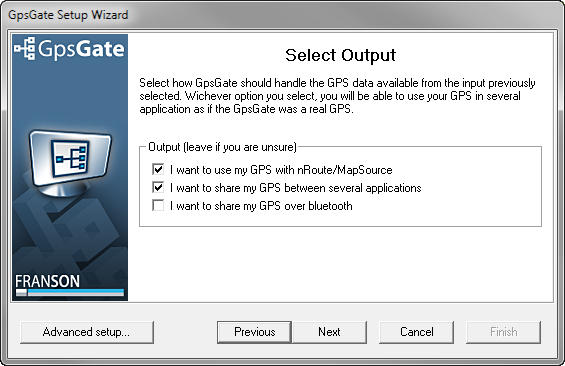
Click next

Click Finish
Open QGIS. Under the View menu click panels and select GPS Information. You should see the GPS Information menu (pictured to the left) appear in the lower left side of the QGIS interface.

Click the Wrench icon. Make sure autodetect is selected and click connect. In about 30 seconds you should be connected to your GPS and have a scrolling Map display.
Want QGIS Training? Need help with a project? Give us a shout at info at northrivergeographic.com